
Bidders & Contractors
Find projects with header search or Advanced Search
Start with a quick lookup, then narrow your search when you need more control.
See it in action
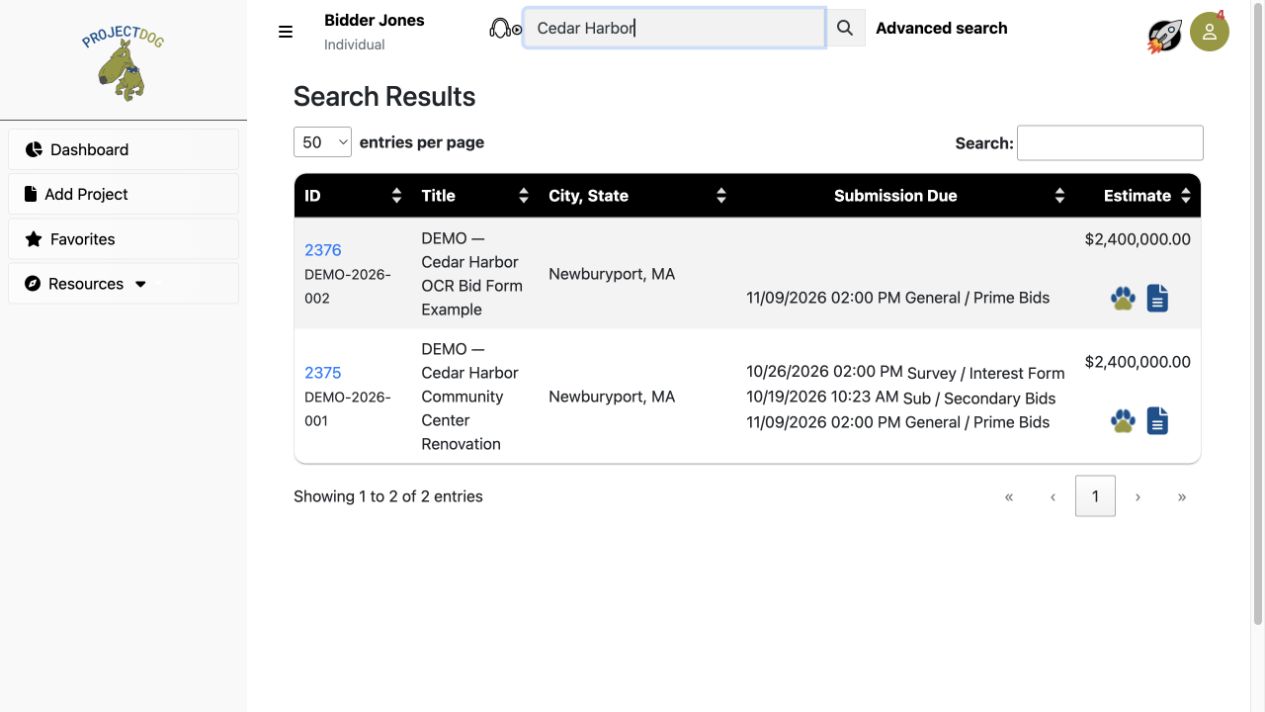
Use the header Search box
Enter a project keyword and press Enter or select the magnifying glass. Advanced search is beside this box.
 View full-size screenshot ↗
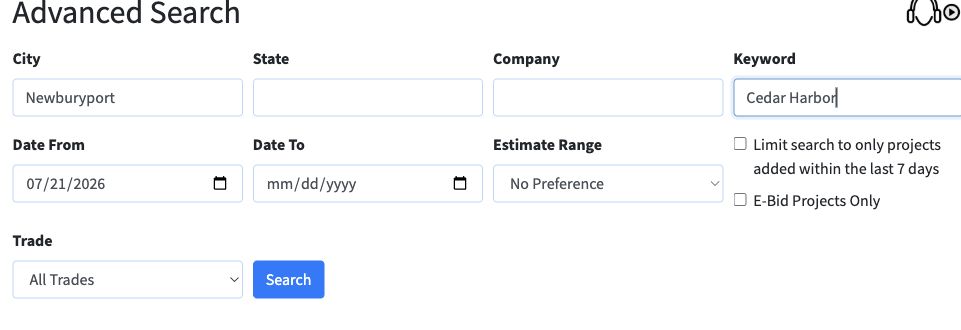
Choose Advanced Search filters
This example combines City: Newburyport and Keyword: Cedar Harbor. Add only the other filters you need.
 View full-size screenshot ↗
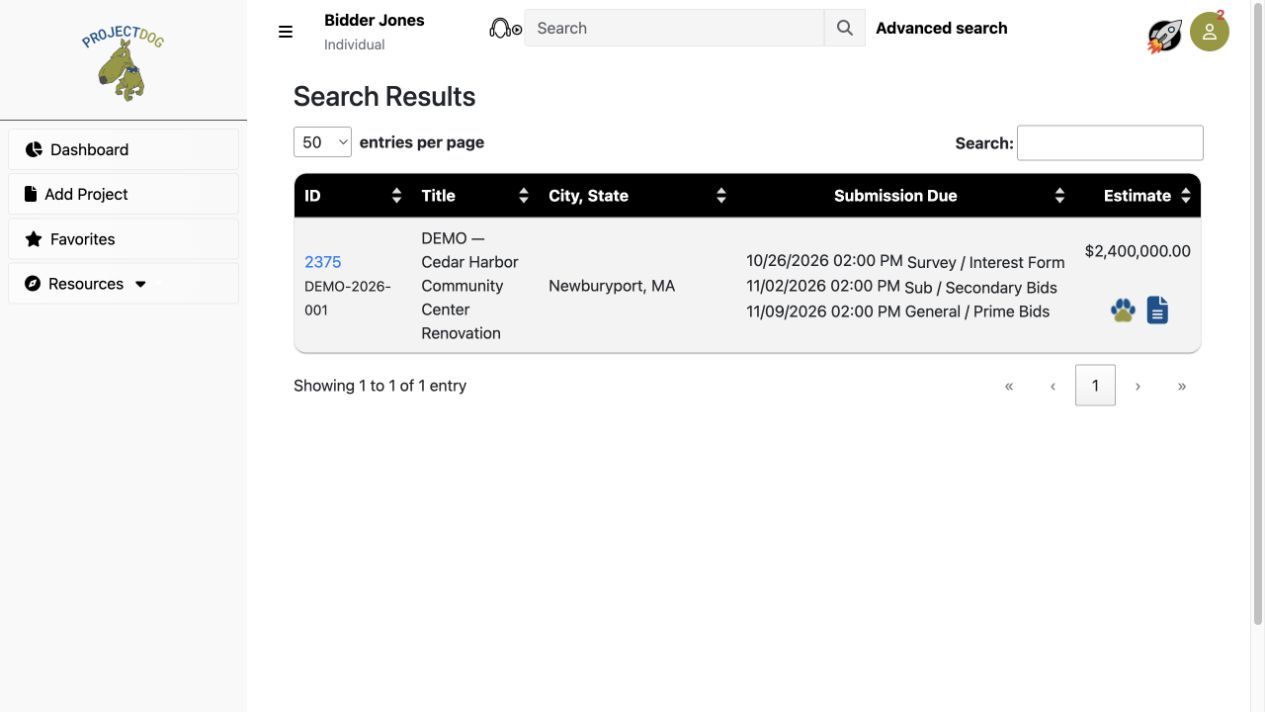
Open a matching opportunity
Select the project ID in the results to see its documents, deadlines and available response modules.
 View full-size screenshot ↗
Actual application screens from synthetic Cedar Harbor demonstration projects.
Header search: a quick lookup
Use the Search box in the application header. Enter a project keyword—for example, Cedar Harbor—and press Enter or select the magnifying glass. Open the project ID in the results to read the project details.
Advanced Search: narrow the results
Select Advanced search beside the header search box. Combine City, State, Company or Keyword with Date From and Date To, an Estimate Range or a Trade. Select Search to apply your choices.
Choose dates and trades with confidence
Date From and Date To look for scheduled submission dates. The last-7-days option instead focuses on newly available projects. When both Keyword and Trade are selected, projects can match either; use location and date filters to narrow that group.
Use the extra filters deliberately
Limit search to only projects added within the last 7 days focuses on newly available projects. E-Bid Projects Only limits results to electronic-bidding opportunities. Leave optional filters broad until you need them.
Read and refine your results
Compare the project title, city and state, submission dates and estimate. The small Search box above the results table filters that displayed list; it does not replace a new header or Advanced Search. Open the project to confirm the exact response deadline and time zone.
Your next steps
- Quick search: type a keyword in the header and press Enter.
- For a targeted search, open Advanced search, choose filters and select Search.
- Open a matching project ID; check the details before preparing a response.
Need help with a project?
Contact Projectdog for help with your account, project access or the submission workflow. Check the project’s published instructions and deadlines before submitting.
Contact Projectdog