
Bidders & Contractors
Keep your submitted response and its history
Find recent submissions in Last 10 Submissions on your Dashboard, then return to the project to check its confirmation and submission history.
See it in action
Keep the confirmation
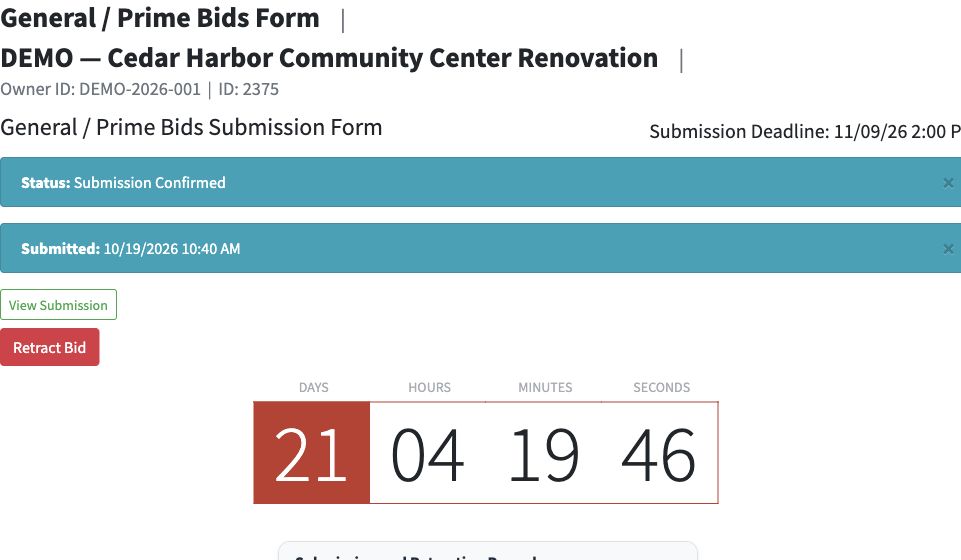
The submitted general bid shows its timestamp and a link to the response package.
 View full-size screenshot ↗
Actual application screens from synthetic Cedar Harbor demonstration projects.
Find Last 10 Submissions on your Dashboard
Your Dashboard shows Last 10 Submissions, with project links and submission timestamps. Select a project to return to its details and open the relevant submission. This is a recent-activity view, not your full submission history.
Check the submitted timestamp
After final submission, the response page shows the recorded time and its submission status. Verify that confirmation before leaving the workflow.
Open your submission package
Use View Submission to open the recorded package. Keep the documents you need for your own procurement records.
Understand permitted retraction
When the deadline and project rules permit, the response may offer Retract Bid. Submission and retraction events are recorded; check the current status before relying on a prior confirmation.
Keep your records before project archiving
Projects become eligible for archiving 90 days after their latest scheduled question or submission deadline, usually the final bid deadline. Archiving can affect access through recent project and submission views. Download and retain your submitted package and confirmation for your own records.
Your next steps
- Open Last 10 Submissions on your Dashboard and select the project.
- Check the relevant submission’s status and submitted timestamp.
- Open and retain the submitted package and confirmation before project archiving.
- Check the current status and history if a response is retracted or resubmitted.
Need help with a project?
Contact Projectdog for help with your account, project access or the submission workflow. Check the project’s published instructions and deadlines before submitting.
Contact Projectdog