
Project Teams & Administrators
Collect and review interest and qualifications
Use a Survey/Interest Form to collect comparable answers and supporting files, then manage responses, review decisions and optional participant communications in one suite.
See it in action
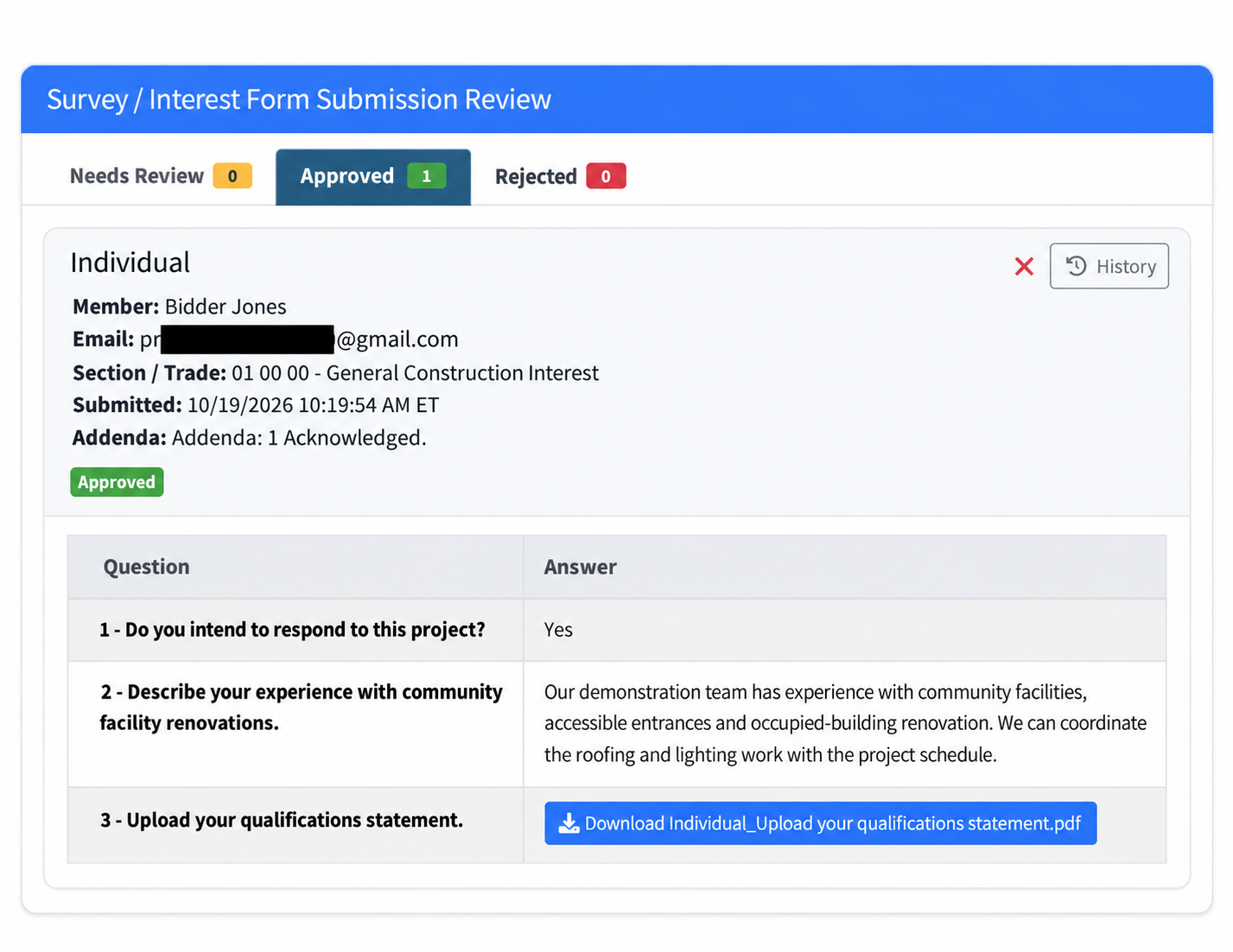
Manage submitted responses
Use Needs Review, Approved and Rejected to follow response status. This approved record shows the participant’s answers, qualifications file, submission details and History control.
 View full-size screenshot ↗
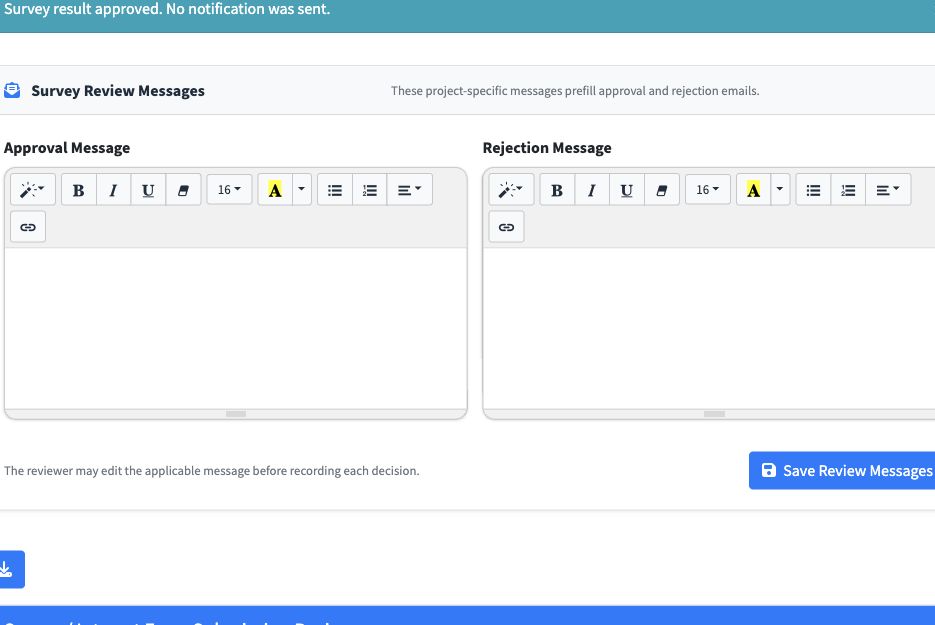
Save project-specific base messages
Save reusable approval and rejection messages for this project. Customize the message for each individual review, and choose whether to send a notification.
 View full-size screenshot ↗
Actual application screens from synthetic Cedar Harbor demonstration projects.
Define the categories and questions
Organize responses into categories with descriptions and deadlines. Ask for written answers, Yes/No responses and supporting files, with conditional and confidential settings where appropriate.
Guide the participant
A single response form brings the category questions, requested files and addendum acknowledgment together for the Bidder.
Review the complete response
Review submitted answers, supporting files and each response’s current status. Approve a response or reject it when a correction is needed, and follow permitted resubmissions from the same response-management workspace.
Save reusable messages for your project
Save project-specific base approval and rejection messages to make communication manageable when many responses arrive. The applicable base message is inserted for each review, and you can customize that individual message before recording the decision.
Choose whether to send a notification
Messages and notifications are optional. Record an approval or rejection without sending a message, or choose to notify the participant with a customized response. Your team controls the communication for each decision.
Preserve the review history
Submission and review history keeps the response record. Rejected responses can be corrected and resubmitted when deadlines and project rules permit.
Your next steps
- Prepare categories, questions and file requirements.
- Review response records, answers and supporting files.
- Save project-specific base messages if useful for your review workflow.
- Record each decision, customize any individual message and choose whether to send a notification.
- Follow review history and any permitted correction or resubmission.
See this workflow for your project
Discuss your procurement process with Projectdog and request a demonstration of the configuration relevant to your project.
Request a demonstration