
Project Teams & Administrators
Keep the procurement’s response records together
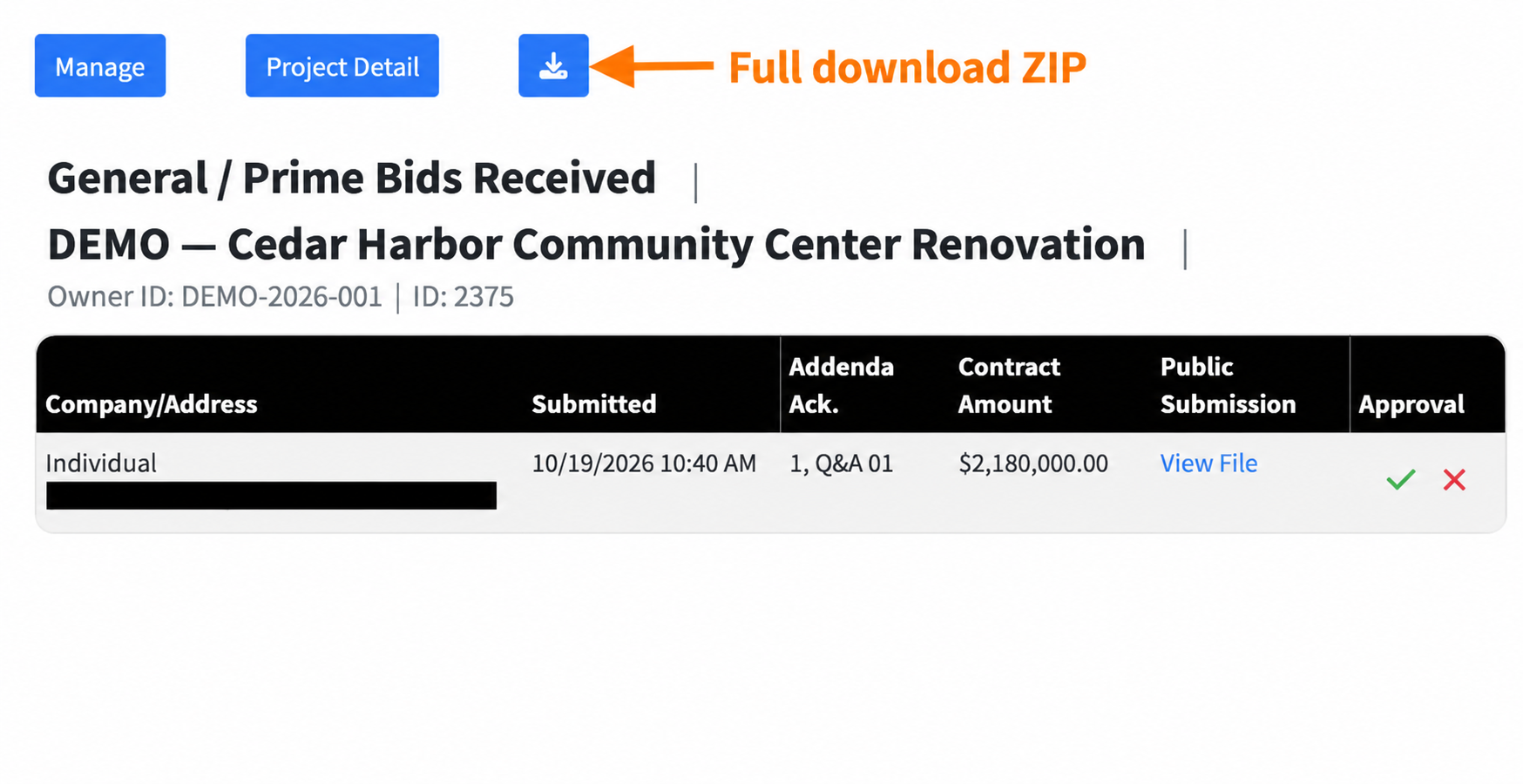
Review General/Prime Bids Received and use the full-download ZIP to retain bid files and available spreadsheet exports in your team’s project archive.
See it in action
Download the full General/Prime bid package
On General/Prime Bids Received, select the download button above the bid records to prepare the full ZIP. Save the completed download with your project’s procurement records.
 View full-size screenshot ↗
Actual application screens from synthetic Cedar Harbor demonstration projects.
Follow the response history
Submission, retraction and review history distinguish earlier events from the current response status. Use the recorded history when reviewing a change or resubmission.
Download the full ZIP from Bids Received
Open General/Prime Bids Received after the submission deadline and select the full-download button. The application prepares a ZIP of the bid files, including Excel and CSV reports where the project collects structured bid values. Wait for the export to finish and the download to complete.
Keep public and confidential material distinct
File requirements and access rules determine how material is available. Use the appropriate review and download route for your team’s records.
Connect the record to the project
Keep the schedule, published updates, Q&A, response packages and official results associated with the same opportunity rather than piecing the procurement together from separate inboxes.
Archive the completed download with your team
Save the full ZIP in your team’s project records and check that it opens before relying on your copy. Retain it with the project documents, addenda, published Q&A and official results. Keep your own archive before the project is archived in Projectdog; downloading a ZIP does not itself change the project’s status.
Your next steps
- Open General/Prime Bids Received after the deadline and review the bid records.
- Select the full-download button and wait for ZIP preparation and download to finish.
- Check that the ZIP opens and retain the full package in your team’s project archive.
- Keep the related documents, clarifications and official results with the same project records.
See this workflow for your project
Discuss your procurement process with Projectdog and request a demonstration of the configuration relevant to your project.
Request a demonstration